Connecting to Lark
Supported Message Types
Version v4.15.0.
| Message Type | Receive Support | Send Support | Notes |
|---|---|---|---|
| Text | Yes | Yes | |
| Image | Yes | Yes | |
| Voice | No | Yes | |
| Video | No | Yes | |
| File | No | Yes |
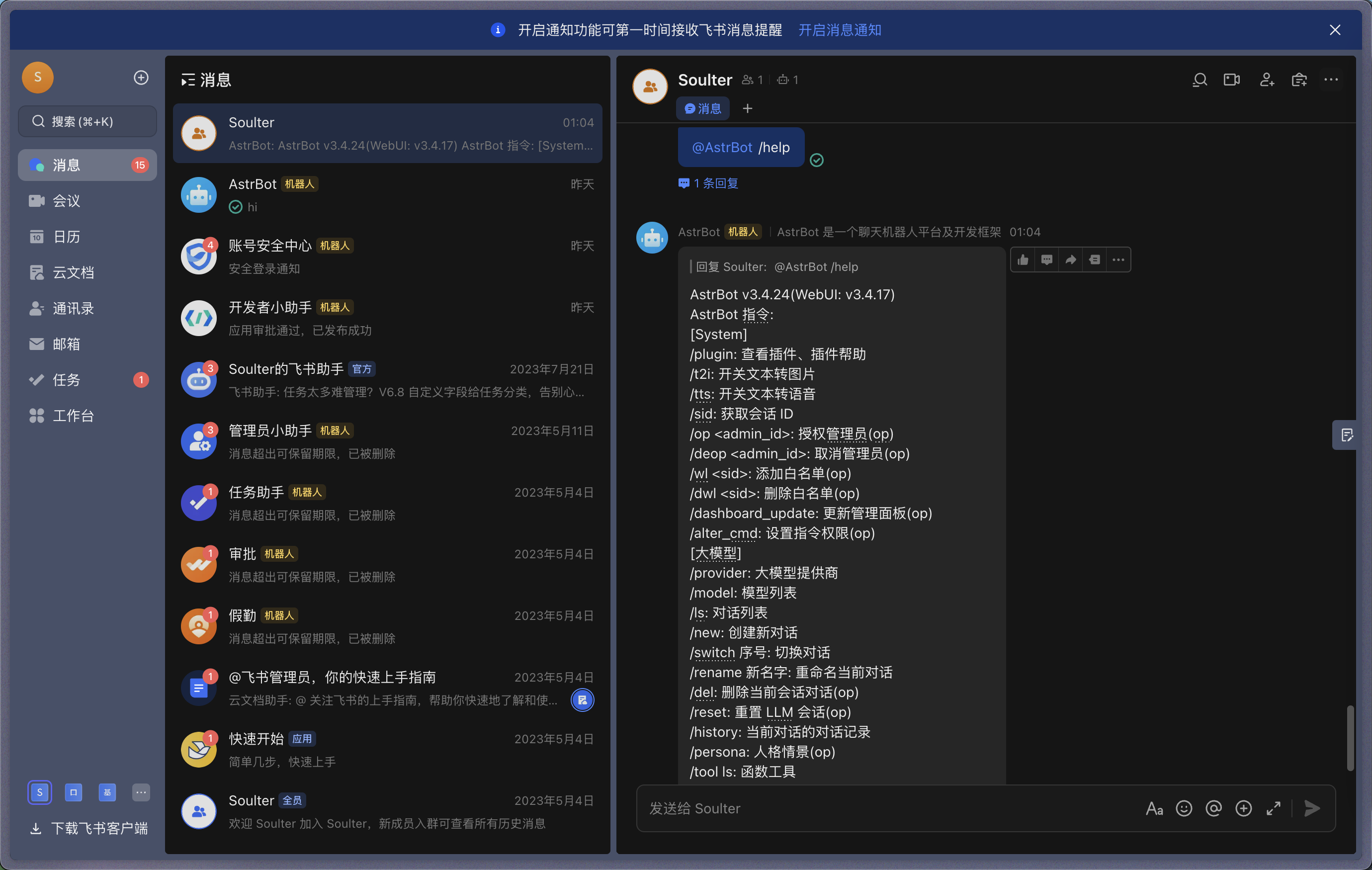
Proactive message push: Supported.
Creating a Bot
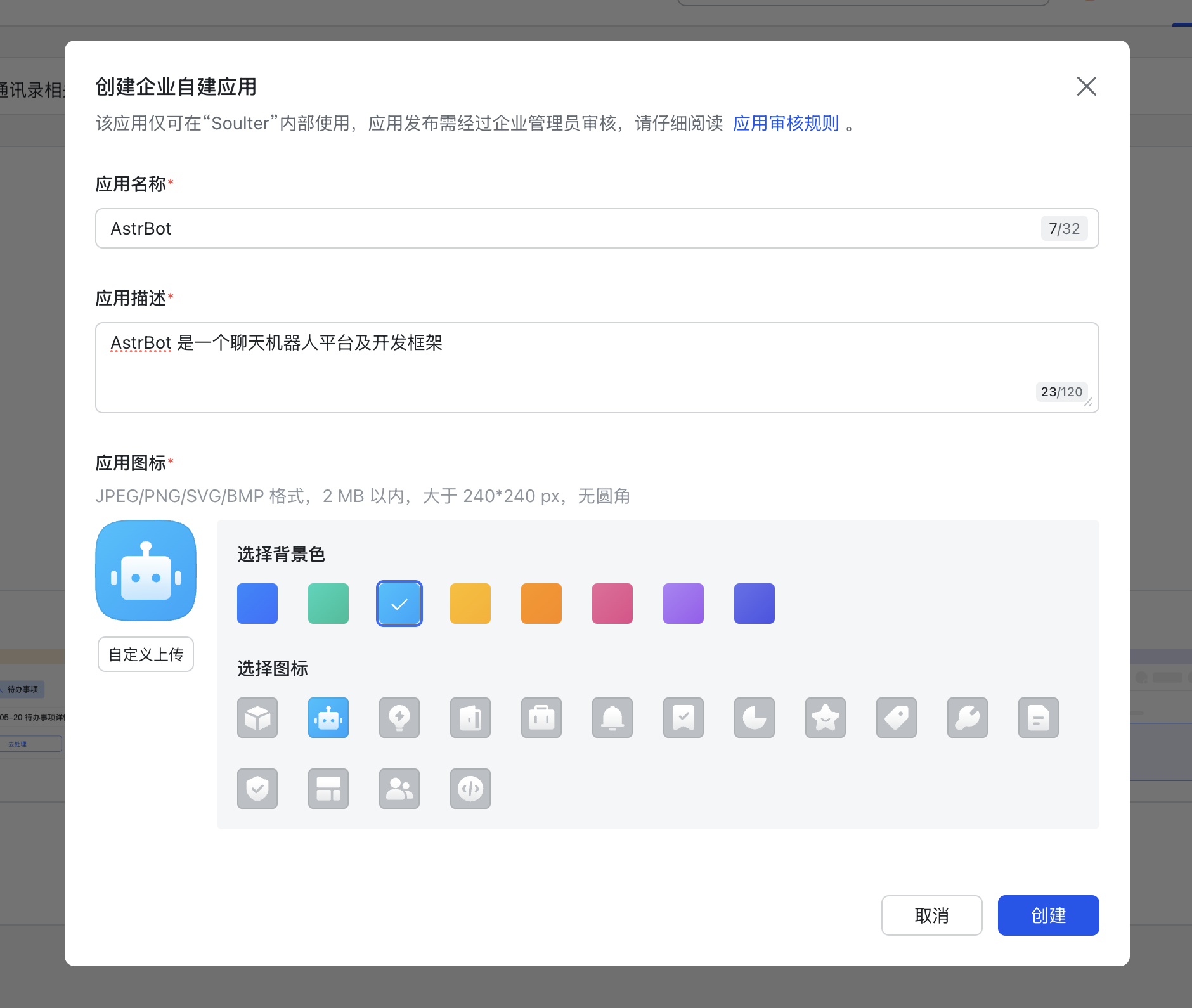
Navigate to the Developer Console and create a custom enterprise application.
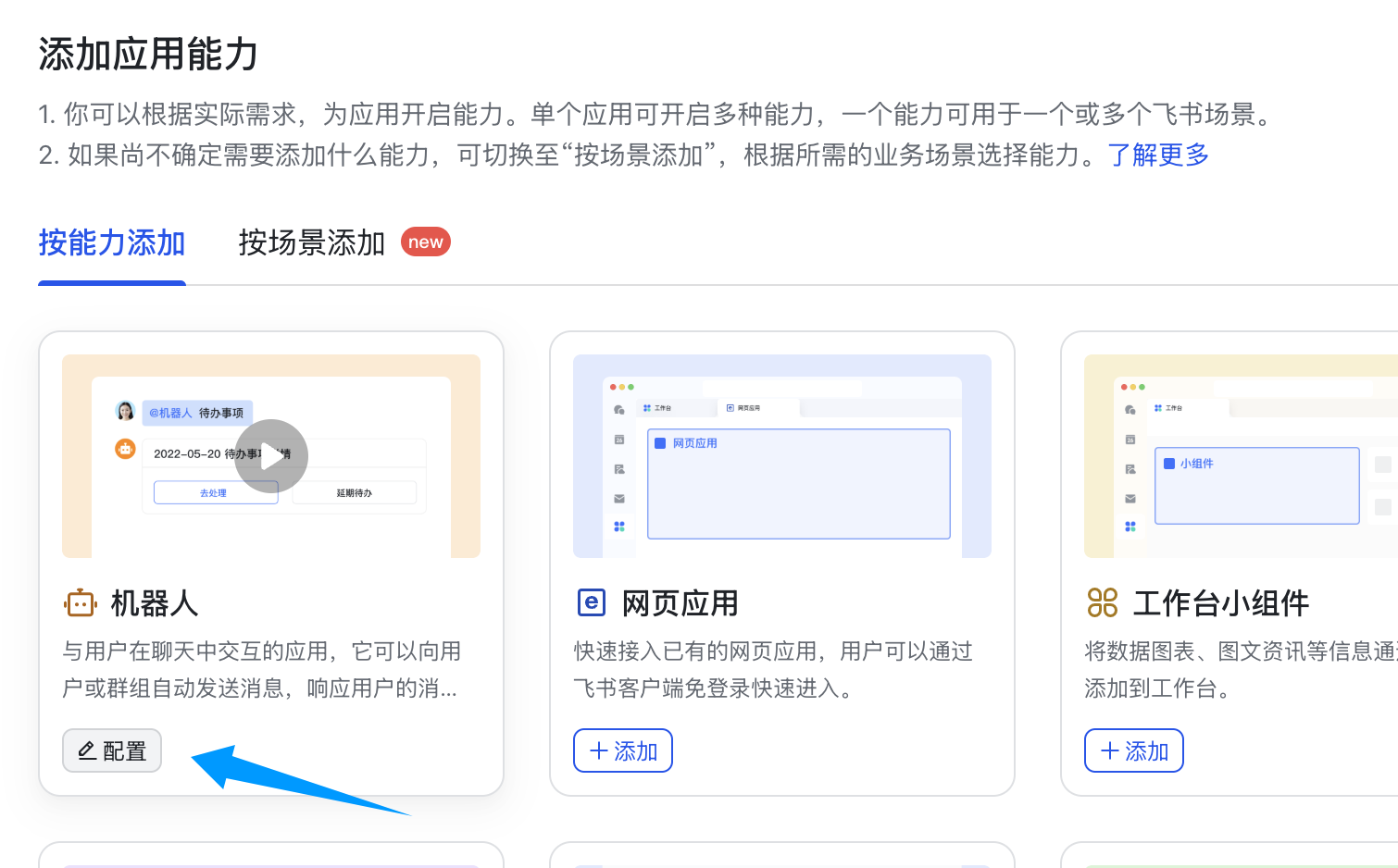
Add the Bot capability to your application.
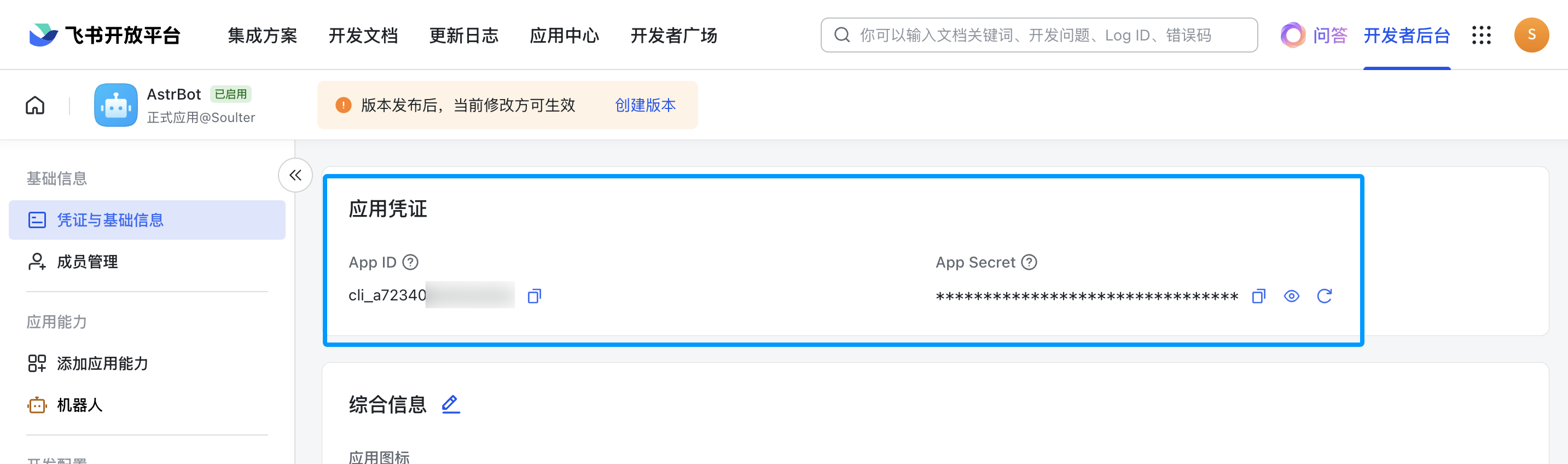
Click on "Credentials & Basic Info" to obtain your app_id and app_secret.
Configuring AstrBot
- Access the AstrBot management panel
- Click on
Botsin the left sidebar - In the right panel, click
+ Create Bot - Select
lark
Fill in the configuration fields as follows:
- ID: Choose any identifier to distinguish between different messaging platform instances
- Enable: Check this option
- app_id: The app_id you obtained earlier
- app_secret: The app_secret you obtained earlier
- Bot name: Your Lark bot's name
For the domain field, if you're using Lark China, keep the default value. If you're using Lark International, set it to https://open.larksuite.com. If you're using a self-hosted enterprise Lark instance, enter your Lark instance's domain.
For the subscription method, socket uses a long connection subscription approach, while webhook sends events to your developer server and requires a public server. Generally, socket is recommended. However, if you're using Lark International or a self-hosted Lark instance, choose webhook. The subsequent configuration steps will differ accordingly.
If you selected the webhook method, navigate to the Lark Developer Console, click on "Events & Callbacks," then "Encryption Policy," and fill in the Encrypt Key. While not mandatory, AstrBot takes your data security seriously, so we strongly recommend setting this up. After filling it in, copy the Encrypt Key and Verification Token to the corresponding encrypt_key and verification_token fields in AstrBot's configuration.
Click Save.
Setting up Callbacks and Permissions
The following steps vary depending on the subscription method you selected above. Please proceed to the corresponding section based on your choice.
socket Long Connection Method
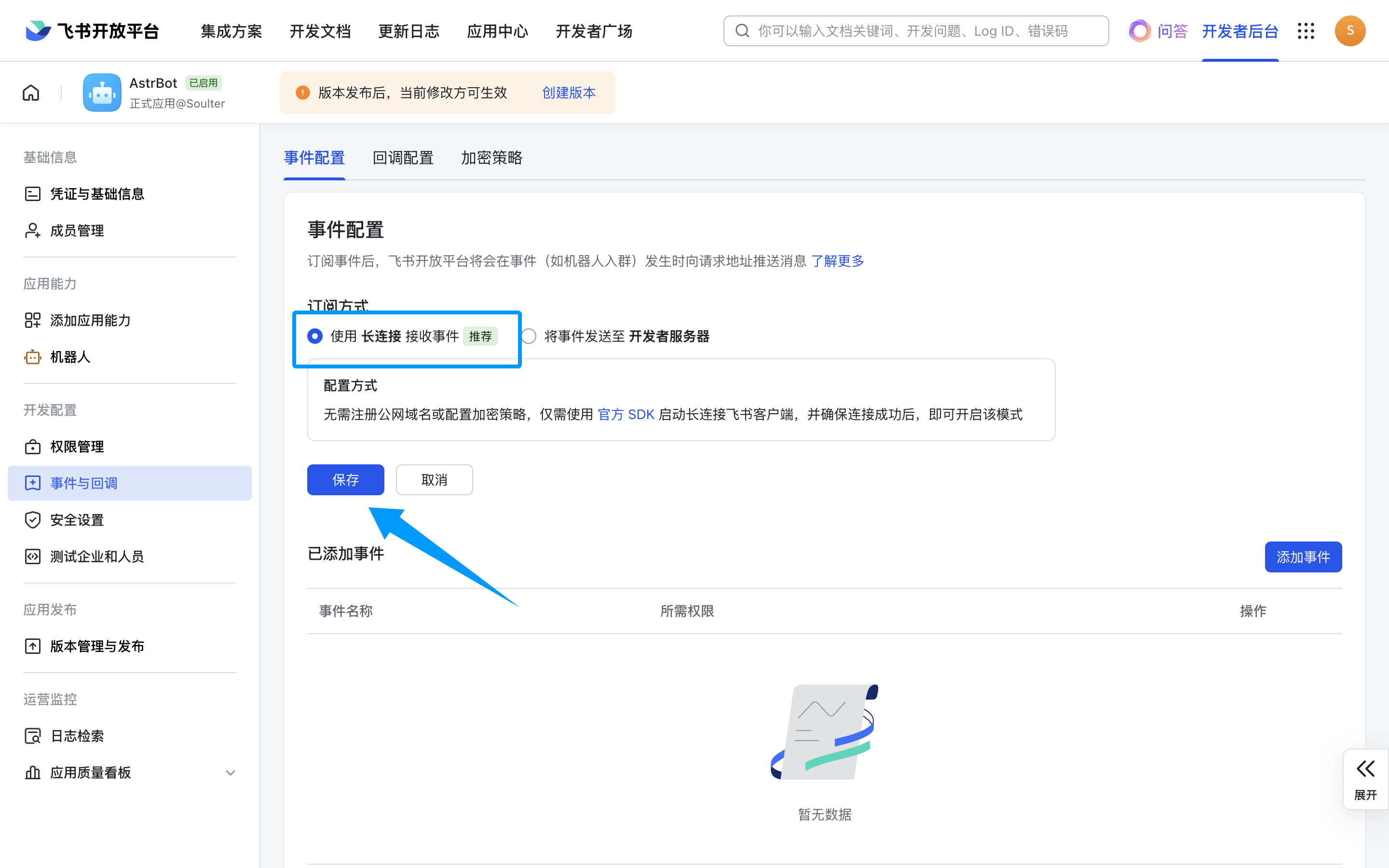
Next, click on "Events & Callbacks," select "Receive events using long connection," and click Save. If the previous step didn't start successfully, you won't be able to save here.
webhook Send Events to Developer Server Method
TIP
To make better use of this method, please refer to Unified Webhook Mode for the necessary configuration.
After clicking Save, the bot card will display "View Webhook URL." Click to view and copy the callback URL.

Next, return to Lark's Events & Callbacks page, click "Event Configuration," select "Send events to developer server," enter the callback URL you just copied as the "Request URL," and click Save. If everything is correct, no errors will appear.
Setting up Events
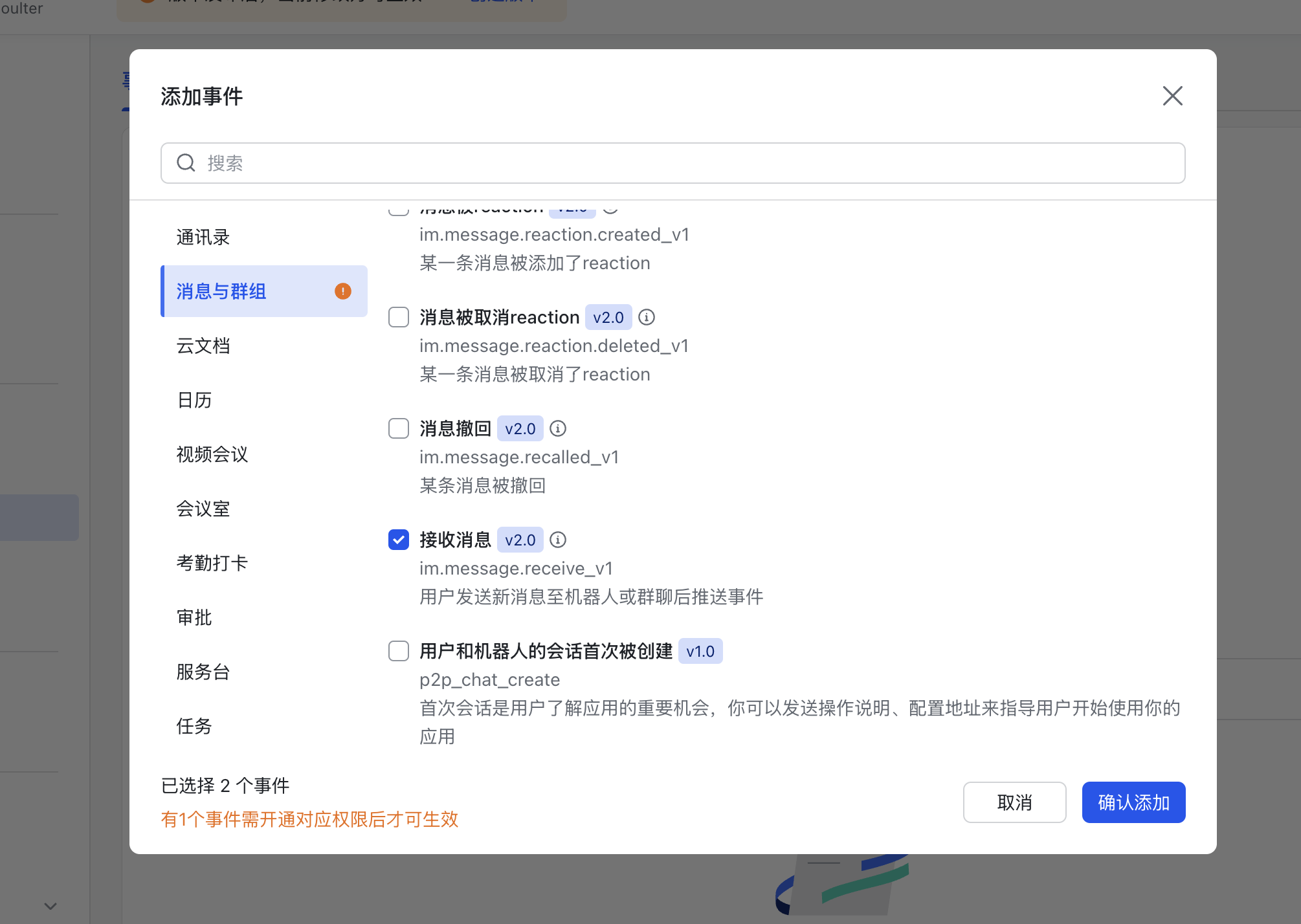
After completing the event configuration in the previous step, click "Add Event," navigate to "Messages & Groups," scroll down to find Receive Message, and add it.
Click to enable the following permissions.
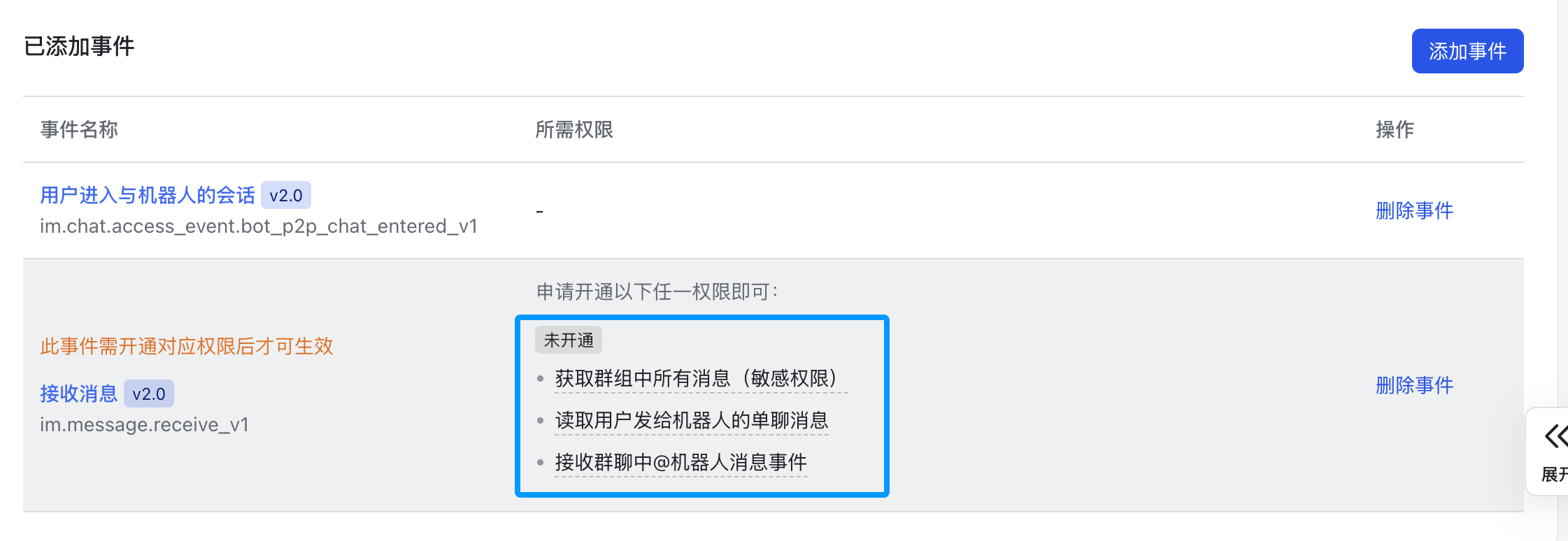
Then click the Save button at the top.
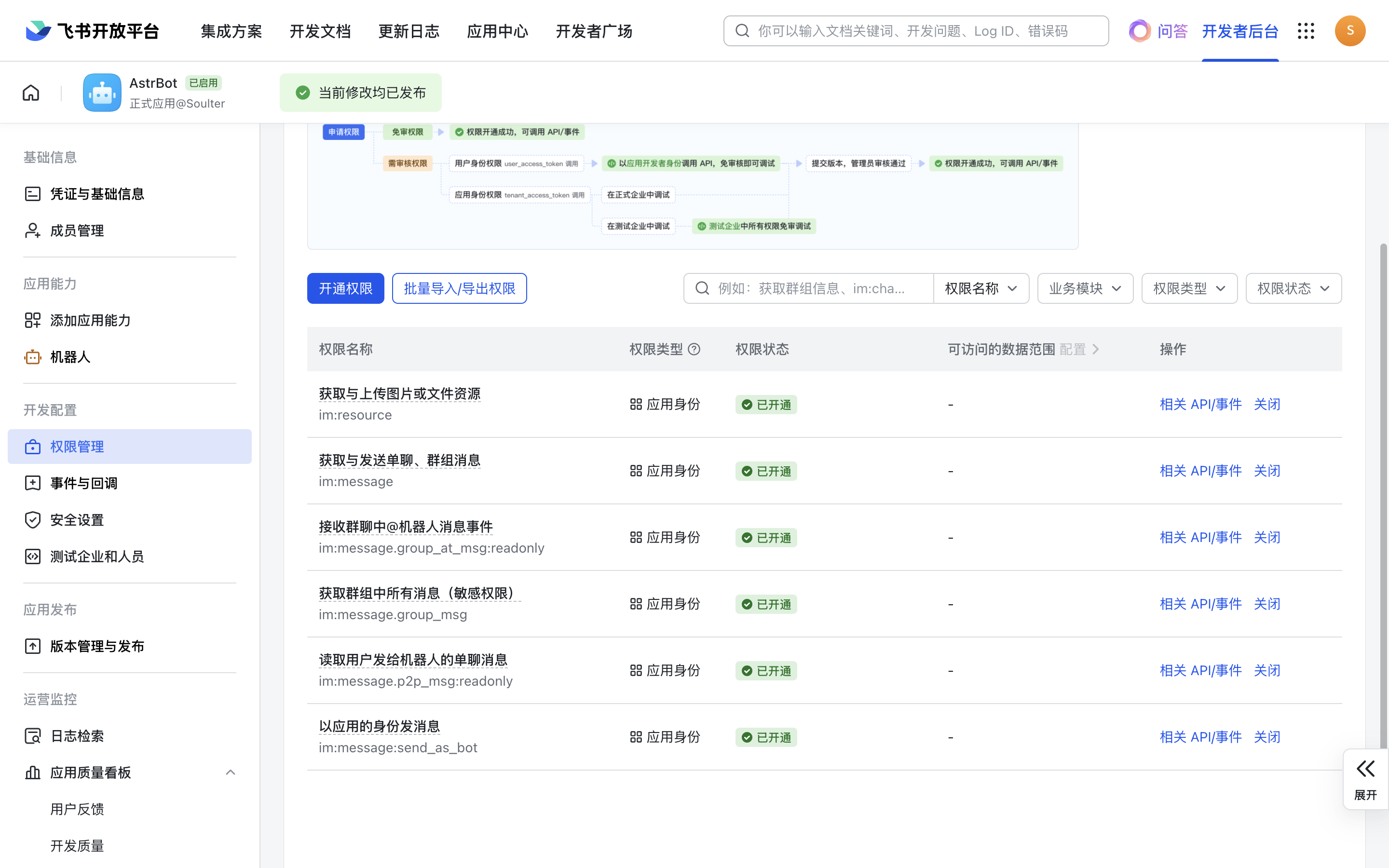
Next, click on "Permission Management," click "Enable Permissions," and enter im:message:send,im:message,im:message:send_as_bot. Add the filtered permissions.
Enter im:resource:upload,im:resource again to enable image upload permissions.
The final set of permissions should look like this:
Creating a Version
Create a new version.
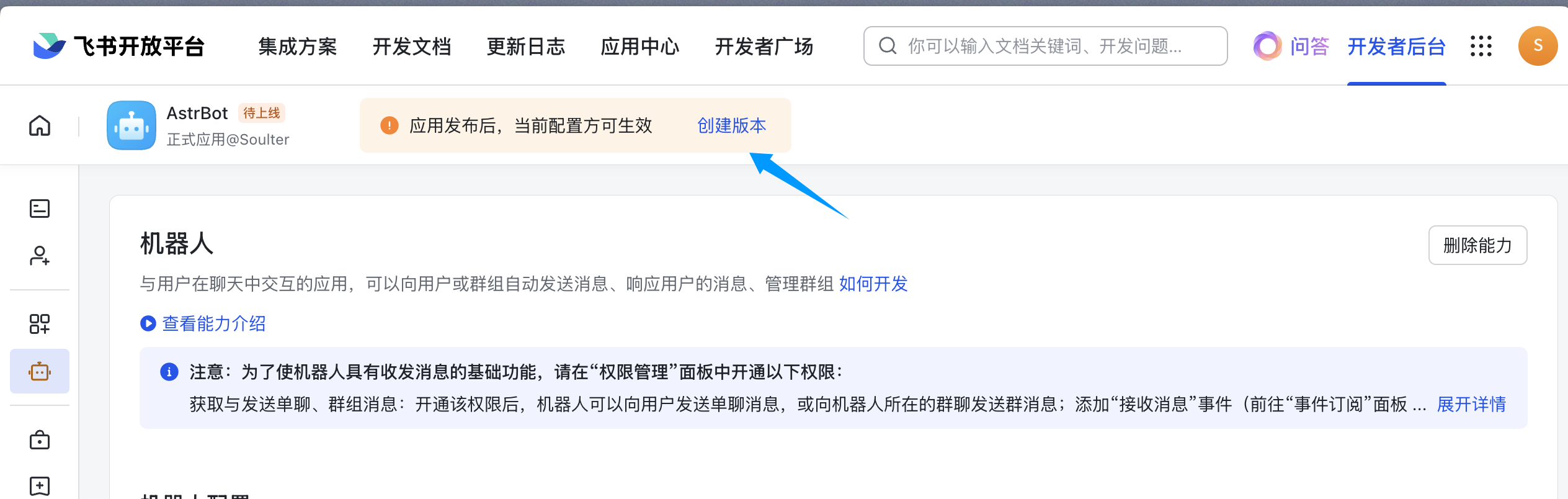
Fill in the version number, update notes, and visibility scope, then click Save and confirm the release.
Adding the Bot to a Group
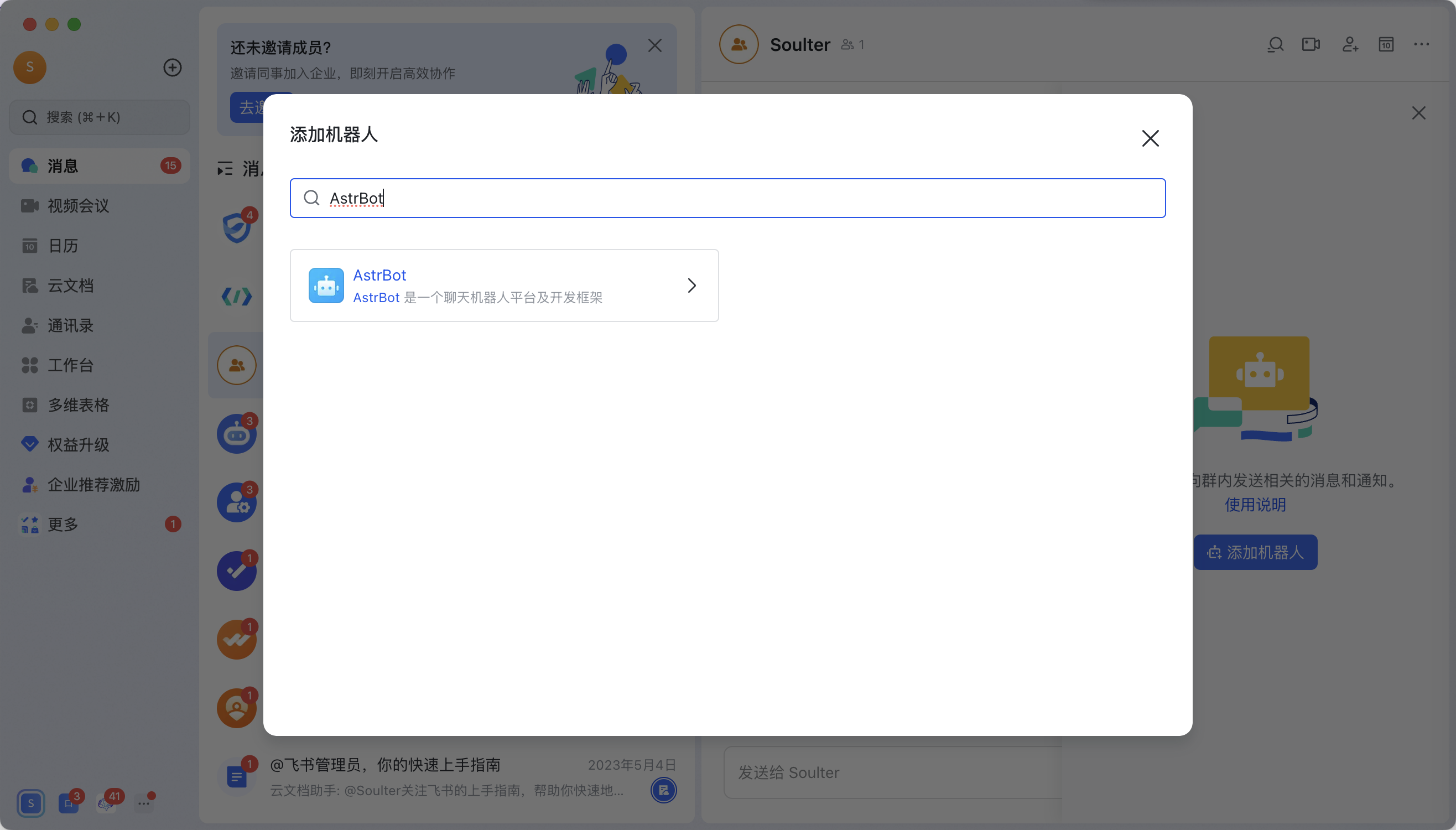
Open the Lark app (the web version doesn't support adding bots), enter a group chat, click the button in the upper right corner → Group Bots → Add Bot.
Search for the bot you just created. For example, if you created the AstrBot bot as shown in this tutorial:
🎉 All Done!
Send a /help command in the group, and the bot will respond.